Showing posts with label RAW. Show all posts

Friday, November 25, 2016

A mobile workflow with Lightroom?

Because of a recent trip to New York I decided to try whether I could work with a exclusively mobile workflow (i.e. no laptop) using just an iPad Pro and the sd card reader for lightning. I've read quite a bit about this and certainly Adobe plays up this workflow on their blog and with videos with well-known photographers singing its praises. I have certainly enjoyed the option to shoot dng files with my iPhone's built-in camera straight into Lightroom, and so to save a bit of weight and to see if this worked as well as advertised, I decided to try it for myself and only take an iPad and my cameras. To put the bottom-line up front, what I found is that this workflow shows some promise but is still very much a mixed bag. It works great if your needs are modest. It does not work when you are importing multiple days of images and when you have more than a few images. Part of the problem lies with Apple and part lies with Adobe. Let me explain my conclusions in a bit more detail.


The Brooklyn bridge at night. Shot using a handheld Nikon D600. Raw image file imported to Lightroom mobile using Apple's lightning sd card reader and edited using Lightroom mobile. The file automatically transferred to my desktop machine from where I edited the detail settings and uploaded it to my web service.

importing images

I use the excellent 9.7" iPad Pro that has the wider color gamut screen. This works great with Adobe Lightroom and it even color manages in Lightroom, Safari and other apps. This is quite nice. Also, the little Apple sd card reader works well but there are a few major problems to be aware off. First, you have to use Apple's Photos app to import your raw images from your camera's card. This is probably an Apple-imposed limitation but it causes some major issues. If like me, you have Photos set up to have your photo library mirrored through the cloud, it will immediately start uploading your raw files to Apple's cloud. Also, most people have limited space on their tablets so you do not want duplicate files in the end. So you have to as quick as you can go into Lightroom mobile and import the raw files from your camera roll. Then when it has imported them, go back to Photos and delete the raw files from there twice (first from the camera roll and then permanently delete them from the trash). The reason to do this of course is that you generally do not have very good internet connection when traveling like this and your tablet will be hogging your internet connection completely if you're not careful. However, this will cause a big problem the next time you import from the card as I explain below.

When you insert your card for the second time (say at the second day of your trip), you will be presented by something like the below:

There are two main problems here. The first is that it takes very long for the thumbnails to show and second that because we (forcibly!) deleted the raw files from the device's camera roll to save space and bandwidth, the device does not know which images were already imported. You basically have to remember and wait until the device finally gets around to the new images before you can select the images to import. This is a pain. You can avoid this by also deleting the files of the sd card, but this is a really bad idea as you will not have a backup of your images. Needless to say that is absolutely not what you want to do. The importing step into Lightroom is very easy however and fairly painless.

Conclusion: importing is not a good experience. This might be fixed if Apple opens up the sd card reader to third-party apps.

Editing images

Lightroom mobile works surprisingly well to edit images. Many things are supported such as gradient filters, and a fairly complete suite of editing tools. There are some major omissions though that turn out to be close to deal breakers for me. The first is that the camera profile defaults to "Adobe Standard" and you cannot change it (or even see the setting!) on the mobile side. This is problematic as the Adobe profile is not good for many cameras. I generally default to "Camera Standard" or to a profile I created from a passport color checker chart. You can't do this in Lightroom mobile. As a result, you're unlikely to get the color you would normally have on your desktop. The second major problem is that Lightroom will not show you the full resolution of the image and you can't change any of the detail settings directly. I could not easily reduce noise in high ISO images and could not optimize any sharpening. This felt very limiting to me. There are a few sharpening and noise reduction presets hidden in the presets submenu that do a bit of what you need, but clearly this needs a full set of settings. Thirdly, you can't stitch panoramas in LR/mobile. Oftentimes when I want to save weight, I will simply only carry a kit lens and shoot wider-angle views by simply moving the camera and stitching afterwards. This is not possible on just mobile. Last, but not least, the "upright" tools are not there. This means that for many of the shots I took in Manhattan and shooting many of the amazing buildings, I could not do any perspective corrections.


Last light reflected in the World Trade Center towers at the 9/11 memorial plaza. I highly recommend the 9/11 memorial museum at the site of the old WTC. A very powerful experience. I shot this using three shots using my Nikon 1 J4 camera at 10mm, imported into LR/mobile and did initial edits to it. When I got home, the images synced (after a looooong time - see below) to my desktop and I could stitch a panorama and do an upright correction to get the buildings vertical.

Conclusion: Editing works OK but is missing some essential features

Syncing images to the desktop

There is only one description for this: painfully slow even on very fast connections. It works for just a few pictures, but if you have more than a few such as the about 50-100 I had every day, it is not a good experience. It would be great if you could get home and have your images waiting for you. In practice, this will not happen. One major reason for this is that Lightroom mobile will not upload the images to Adobe's creative cloud while it is not in the foreground. This means that you have to stay in Lightroom and you have to keep your tablet awake. Also, it seems to use only a tiny fraction of the upload bandwidth and so expect it to take hours during which you can't do anything else with your tablet than Lightroom. To make matters worse, once your images have finally transferred over, your desktop machine does not have any clue that it has the images already in its library when you insert the memory card from your camera in your computer. This seems like a small problem but in fact, many people might take the approach to the above problems to only import a few files into LR/mobile and when you get home to import the rest from your card. This will ensure you end up with many duplicates! I do not understand why Lightroom Desktop does not recognize it already has the image files as it should screen on filename, capture date etc. All data that is exactly the same.

Conclusion: syncing your raw images to your desktop is not a very good experience.

Sharing images on social media

This is one thing that worked well. It is quite easy to just hit the share button in Lightroom and share directly to instagram (example), Facebook, twitter (example), etc. There are some issues with image quality however. The "small" 2048 pixel (how is that small?) has lots of jpeg compression artifacts. You also cannot easily add a watermark without going through another app on your iPad. There should be more options for image size and quality.

Conclusion: sharing your images on social media works well but can be improved.

Final thoughts

To sum up, A complete mobile workflow for people shooting raw files is not here yet. For now I recommend you take a ultralight laptop such as a MacBook Air or a Microsoft Surface and just run the desktop Lightroom on it. I am sure this is set to improve in the near future though. LR/mobile has rapidly improved over the last few months from a mere curiosity to something that at least comes close now and I am sure Adobe will keep improving the software. It is quite amazing that you can now edit raw images on a mobile platform fairly well I think. However, dealing with hundreds of raw files does not work well and has to be avoided for now.

Saturday, November 28, 2015

Dream Lake October 2007

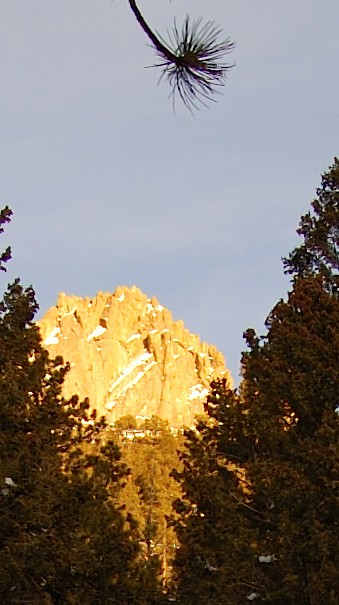
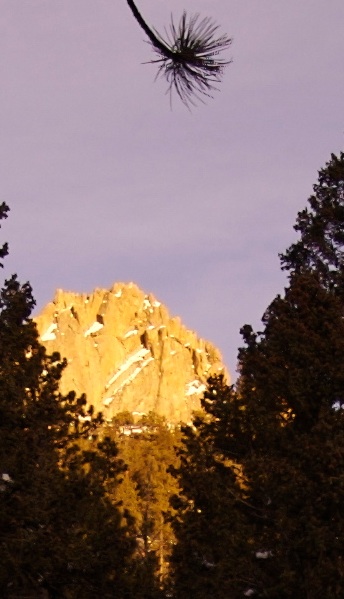
One of the major advantages of shooting raw is that you can go back later and process using newer processing tools and styles. Certainly in the last 8 years not just the quality of cameras but also the quality of tools has increased tremendously. In 2007, I made my first sunrise trek to Dream Lake and beyond. I have never blogged on those images but have shared a few on my website. However, at the time I was disappointed with the color in many of the images as they came up in Lightroom. I had also taken a few images on Velvia that were much better with respect to color and detail but I lacked a good scanner so I never shared those either. I was testing scanning some film using a viewer and a macro lens on my DSLR and naturally did a comparison with the old 6 megapixel DSLR images. It struck me that those images were all processed using the very old processing engine from Lightroom at that time and at a time Lightroom did not have any camera matching profiles. I simply hit reset, which chooses camera default for me and the most current pressing engine and the images came out looking very similar to the Fuji Velvia scans. Sliding a few sliders and they looked better! I also discovered that I had shot many panoramas for stitching at high resolution that I had never seriously stitched because I didn't like the color. Stitching these gave me better resolution than the Fuji Velvia scans. I will share a few of these old, new images below. As always click on the images to see them bigger and two order prints.

The red dawn
"Red Dawn". Nikon D50. Stitched from 3 images each at 18mm Nikon 18-55mm f/3.5-5.6, ISO 200, f/8.0 6.0s
This was just before dawn. The mountain was glowing quite outerwordly as you can see.

Purple at sunrise
Purple sunrise. Nikon D50. Stitched from 6 images each at 26 mm Nikon 18-55mm f/3.5-5.6, ISO 200, f/4.0 1/40s
When the first light rays hit the top of Hallett peak, the color had changed to purple everywhere.

Radiate Radiate. Nikon D50. Stitched from 6 images each at 26 mm Nikon 18-55mm f/3.5-5.6, ISO 200, f/4.0 1/40s
Just moments later the color changed again to the more neutral blues you see here.

A window on time
"A window on time". Nikon D50. Single image. Nikon 18-55mm at 18mm f/3.5-5.6, ISO 200, f/8.0 1/30s
This is from a single shot but I really liked it. The velvia version of this image has the tree areas almost completely black. The digital shot easily reproduces those.

Witness
"Witness" Nikon D50. Stitched from 6 images Nikon 18-55mm at 24 mm, f/3.5-5.6, ISO 200, f/11 1/50s
This tree was always intriguing to me and I had set up the shot as you see here, but I had never been able to make it stand out like I wanted. With the more modern tools in the current Lightroom, it was trivial to brush it up a bit and make the whole image pop as I saw when I was there. Works really well in this treatment I think.

Friday, November 9, 2012

The importance of white balance revisited

A little post for all you photographers out there. This is a revisit of an older post that gets a fair amount of hits every month. In the previous post I showed how the white balance setting in your raw converter, whether it is your camera or in software, has an enormous influence on the look and feel of an image. Also, there are many situations that simply confuse your camera's automatic white balance algorithms and so you often cannot trust it. This is especially true in landscape photography done at the edges of the day or in situations where there are deeply saturated colors present. A few days ago, I was photographing the sunset at a lake near my house and my D600, although far better at interpreting white balance correctly than any other camera I have shot with clearly got it wrong as should be evident from the image below.

Click for bigger!
This was shot with a 3-stop graduated ND darkening up the sky. The left image shows what the camera thought of the color balance. It rendered the water weirdly green. The white balance it chose is actually pretty close to a tungsten white balance but with a large green value. It is pretty close to the out-of-camera jpeg as I chose landscape picture style and chose the same profile in Lightroom. second from left is the result of clicking on auto in Lightroom. This gives an interesting result with very blue water. I did not use a Blue/Yellow polarizing filter for this image so this does not correspond to what I saw, but is still an interesting image. Again, the automatic system thinks the white balance is close to that of a tungsten bulb. The right three images are daylight, cloudy, and shade in that order. Those all correspond to the mood of the scene much better and choosing between them comes down to taste I think. In fact I would choose close to "Cloudy" if I were pressed.
I haven't posted this and other images from this sunset yet except for the panorama I posted a few days ago where I actually went for the bluish look that the camera itself selected but will do so soon.

Thursday, February 16, 2012

Lightroom wish list fulfillment

Back in '09 I wrote a small list of top 10 wishes I had for additions/improvements to Lightroom. AT the time, LR was at version 2.2. When I recently looked back on it, I was struck by how many of these are now getting fulfilled but also by which ones are still on the table. To summarize here are the wishes again from 10 to 1. I'll bold the ones that are now fixed or supplied in LR 4 beta.

10. Faster browsing of previews. While this was sped up a little, it is still one of the main complaints with Lightroom. Scrolling through large sets of images will often result in lagging image preview updates. However a lot of these improvements were negated by overall more complex raw rendering making everything still sort of slow. I call this one still open for fixing.

9. Fool-Proof printing. This was fixed mostly by the printer manufacturers finally getting their act together and updating their drivers to support modern color management. Also any last issues remaining (too dark prints) can now be fixed mostly by the new Print Adjustment sliders in the print panel.

8. Better slideshow module. This has largely remained unchanged and is a huge opportunity for improvement. I don't use it.

7. Lens Correction tools. This is now very well dealt with. Lightroom supplies a lot of lens correction profiles for many main stream lenses and for those remaining you can easily create the profiles yourself (I've done a few and you can download them using Adobe's lens profile downloader tool). In LR4 beta, the lateral chromatic aberration can now be automatically removed for any lens, even those without a profile. It's more effective than the profile-based method supplied in LR 3 in my testing. Still missing is some sort of axial CA correction, but that is far harder to deal with.

6. Facial recognition. Nope not there yet. Aperture does this, Picasa does this, Adobe PS Elements does this. Lightroom should be able to do this (with appropriate privacy controls if needed) but doesn't yet. This feature would be a big timesaver for lots of pro and non-pro users of the software. Obviously for my landscape photography it is useless, but it would be really handy for the family photos. Likewise I'd imagine wedding and event photographers could benefit from this.

5. Geotagging tools. They are now here with the new Map tab. The tools are not yet as good as Jeffrey Friedl's plugins but they represent a hug step forward. Some bugs left in there are that height data is not saved on export and not generated from gpx tracks. If you shoot a lot in the mountains as I do you care about that data.

4. More complex, boolean searching. EDIT: 2/16/11 As Michael Perlov points out below, you can do boolean searches by prefacing search terms with an exclamation mark in the text search field. I am embarrassed that I did not know that as that is a standard boolean operator that I use in programming all the time. It is not complete yet as I don't see an or operator but I think this deserves a bolded heading.

3. Book Making. Yes we finally have this with the built-in book making tool that prints to blurb. Very nice. There is even the promise of future editability of all the templates.

2. Raw pipeline plugins. We don't have these yet, but it is becoming less and less relevant as the built in raw engine is getting so good that I doubt many people still need external noise reduction software or other editing tools. So while this would still be nice, I wouldn't count this against Lightroom right now. Your mileage may vary of course.

1. Soft Proofing. We got this in LR 4b and it is fantastic. It is very well done. In fact better than Photoshop in my opinion. It is very natural and very usable. See here for part 1 and here for part 2 of a great video tutorial from Andrew Rodney. There are a few bugs in the beta version (soft proofing for sRGB doesn't work) but I am confident those will get fixed in the final version.

All in all 5 of my original wishes are fulfilled. 1 is more or less irrelevant, and 1 is really close (the boolean searches). Things are looking great. Of course the best feature of LR 4 beta is the new raw engine. It has to be seen to be believed. Like magic is an apt description.

Wednesday, April 6, 2011

White Sands Yucca

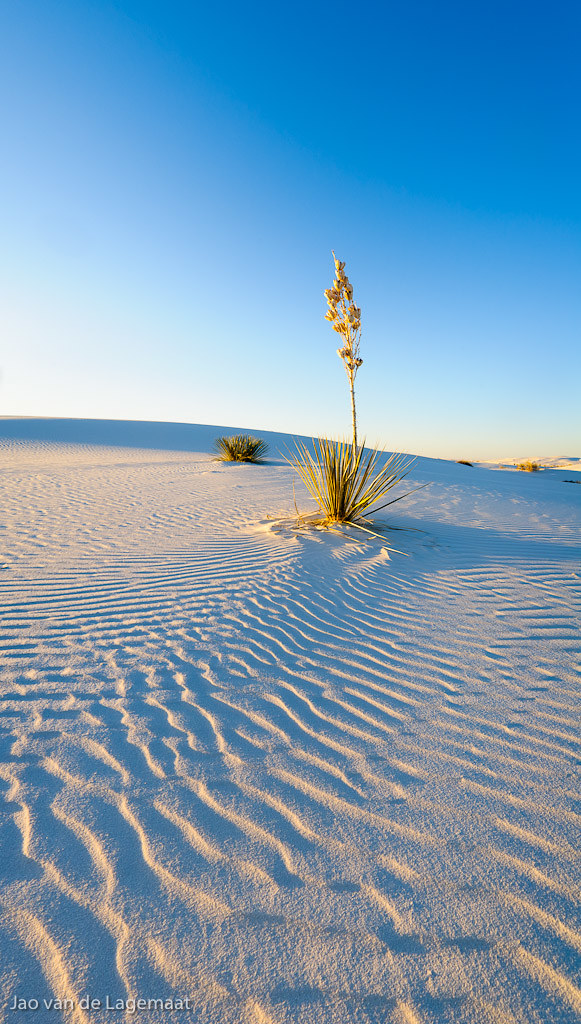
One of the nice things about raw capture is that you can always go back later and redo your images using more modern processing tools. We have a very large print of an image I took on a family vacation to the South at White Sands National Monument hanging on our wall. It is a gorgeous image of a yucca in the white dunes in my not so humble opinion but color wise I always thought it was duller than we experienced the moment which was quite magical with gorgeous warm sunset light playing over the dunes and ripples in the sand. This turned the shadow areas on the white sand a gorgeous blue. Neither comes out very good in the print. So I dug up the harddrive that these older images are stored on and fired up Lightroom which has the references in its database to these older images. Typed in White Sands in the search box and poof there the images were. They were of course done in the old process in Lightroom and I was using the Adobe Standard profile. Users of Lightroom may know that this usually leads to dull color. Switching to the new process extracted significantly more detail, turning on automatic CA correction also helped, but mostly the image was helped by selecting the landscape profile for the camera. I also upped the exposure compensation a little, making the image more high key as appropriate. Exported the three photographs to 16-bit ppRGB tiff and stitched them in hugin. Below is the result as uploaded to flickr

White Sands Yucca

The same yucca image (cropped differently) in the older treatment is here. The same cropping in the older treatment is on smugmug here, which is the print we have on our wall. I'll probably replace the smugmug image sometime soon with the new higher quality image. Even though it was a few years ago, this image feels much more like the experience we had trolling on the dunes that evening.

Monday, June 29, 2009

Interesting new Lightroom plugin

Allows you to open RAW files directly in other RAW editors such as Nikon's Capture or Canon DPP. Check it out.

Saturday, November 29, 2008

Adobe camera RAW and DNG converter update

Adobe has released the 5.2 update for camera RAW (only works in CS4) and an update for DNG converter. Contrary to what it says on the camera raw download webpage, the camera RAW and DNG converter are now separate installers (use the popup to find them or use the links further in my post), which is a good idea. If you have Lightroom 2.1 and CS3, only get the DNG converter installer. If you have LR 2.1 and CS4 install both. The separate DNG converter installer is here for Mac and Windows. Installing DNG converter will also give you the final release version of Adobe's new camera matching profiles. What's great about DNG converter is that it will allow you to convert RAW files from cameras not currently supported (at least until December) in Lightroom 2.1 to dng such as the Canon G10 and the 5D mk II. You can load the dng files in LR 2.1 and they will be fully supported.

Friday, February 15, 2008

Aperture 2.0

Apple brought out Aperture 2.0. A wonderful update to their photo management and editing app. I have been playing with the demo quite a bit and it does address most of the major problems it had in 1.5. I'll write about it more in the future especially about where I'd hope that the Lightroom folks learn from Aperture 2.0 - and there are quite a few areas. So this is NOT a review and it only addresses a tiny point. It might not be a problem for your camera also, so I suggest you check it out for yourself first. For now, I'll focus on image quality, which for me is of paramount importance. Apple's RAW library has had major moiré problems in the past, where the RAW interpreter would create small little mazes. I am happy to say that most of the worst examples of this have been solved. They were actually already solved in 10.5 Leopard BTW. However, there are some problems remaining. I will compare the quality of the RAW converter in Aperture with that in Lightroom. Here is an image from a frozen lake in the Colorado Mountains taken using my venerable (and very light!) D50.


The ice on the lake has lots of wonderful structure that you can see in this 100% crop from the Lightroom image:


Now compare this with a 100% crop from an Aperture export of the same image:


What is going on? I see anomalously colored areas, little mazes and a generally muddy image. This is not salvageable with any moiré reduction, sharpening or edge sharpening in Aperture. It just becomes more messy. To illustrate further, here is a 300% zoom of the image in Lightroom compared with Aperture:

Lightroom conversion:

You see all the detail and bumps in the ice very well.

Aperture conversion:

Ugh! I admit you have to be a pixel peeper for this, but that is terrible. Of course on a webimage, you will never see it as illustrated by the Aperture image below (compare to the first image on top of this post):


Looks fine at this scale of course. However, you will certainly see this in larger prints (i.e. 8x12 and larger). In all this I haven't even mentioned that Nikon's software conversion of the image is even slightly better than Lightroom/ACR! Also, note that I looked at only one image. I see it in other images too though also from different cameras, but your style of photography or your specific camera might make this less of an issue.

Of course, when I edit this picture further, I would probably brighten the foreground a little and crop it differently. Here is the result starting from the Lightroom image above.:

Tuesday, November 27, 2007

RAW files for the D3 and D300

Just found these examples of RAW files taken with the new D300 and D3 and compared to the D200. Lightroom and ACR will read all these files, so you can easily compare them yourself. The white balance is wrong in the file, so use the eyedropper on the grey patches in the colorchecker to get good color. Shortly, the high ISO performance of the D3 is absolutely crazy. It is also amazingly sharp. At 1600 ISO, compare it to the D200 file. The D3 has gobs and gobs more detail. Even if you take the ISO all the way up with the D3 and compare that file to the 1600 ISO D300 or D200, you'll see far more detail. This might be the often discussed full-frame advantage. Quite extraordinary. Makes me lust for a D3, however new windows for the house are more important right now ;-)

Sunday, September 2, 2007

Actual resolution of Bayer sensors - You get only half of what they tell you


Almost all current DSLR-type cameras are based on a Bayer-filter array sensor. This means that each pixel on a CCD or CMOS chip has their own color filter. The array is usually arranged in a a square fashion where each square of four pixels has 1 pixel with a red filter, one pixel with a blue filter and 2 with green filters (in one of the two diagonals for obvious reasons. There are two green ones, because the human eye is most sensitive to green light and therefore to noise in the green channel. So a 10MP camera has 2.5 Million green pixels, 2.5 million blue ones and 5 million green ones. The job of the RAW processor in the camera or in the computer software if you shoot RAW is to interpolate between the single colors to generate the missing color values at all pixel locations. Most RAW processors do a pretty good job at this, but there is a physical limitation imposed by this. The actual resolution of these sensors will never be as large as what is claimed. If you would remove all the filters, you would get the claimed resolution in black and white. Another alternative is the foveon sensor such as the ones used by sigma, which has three color pixels all at the same site arranged in layers. This leads to the exact same resolution as the number of photosites. Unfortunately, Sigma chooses to simply count the number of photodetectors, which artificially inflates the resolution number by a factor of 3. For example, the SD14 is marketed as a 14.1 MPixel camera. This is extremely misleading as the actual resolution is only 4.6 Megapixels. The camera generates jpegs at 14.1 megapixels, but the pixels in between the actual photosites are simply interpolated and do not add any extra information. Silly marketing! Anyway, cameras with Bayer-array sensors suffer a similar problem as I explained above. The excellent site dpreview.com actually tests the resolution of all the cameras they can get their hands on. They use high resolution primes to make the comparison fair. Of course, comparing between cameras this way is the hallmark of a measurebator as ken rockwell likes to say, so I am not going to compare cameras, just see if we can draw some conclusions about the Bayer technology. Dpreview gives some numbers for the actual resolutions of the cameras they test in lines per picture height (LPH). For example, for the Nikon D200 the horizontal LPH is 2100 and the vertical 1700, since this is a 6x4 sensor, the actual resolution of the sensor is 6/4*2100*1700=5.36 Mpixels. About half the number of photosites on the sensor. Dpreview also gives an extinction resolution where all detail disappears, but moiré artefacts are visible. For the D200, this occurs at 7.4 Mpixels. To see if we can learn some more about these Bayer array sensors, I've taken the MTF data from dpreview.com for a large array of Nikon and Canon DSLR cameras and plotted the actual measured resolution vs the number of photosites on the sensor (on the right), together with the "extinction resolution". The green line would be if the resolution was the same as the camera megapixels. It is clear that a trend is visible in both the real resolution and the extinction resolution. For all array densities, the actual resolution obeys:

actual resolution = 0.58*MP

and the extinction resolution:

ext. res. = 0.8*MP.

So the actual resolution of your camera, if you have a Bayer sensor, is only about half of what is claimed! Extraordinarly good RAW processors might be able to get slightly more out of it, but never more than 0.8*MP. WIth Foveon sensors it is even worse, you only get 1/3 of the resolution of the number the camera manufacturer claims as they quote you the number of photodetectors, while the only thing that matters is the number of pixel locations, which is only 1/3 of the number of photodetectors.

Friday, February 2, 2007

RAW development in Nikon's tools

As a followup to an earlier post, I am here providing a another conversion.
First Nikon's conversion (100% crop):
Conversion using Nikon's tools
Then Mac OS X(aperture) default:
GGCSP_system_crop
Horrifying indeed. Nikon's tools are dog slow but their quality, although not as good as lightroom's, is head and shoulders over Apple's RAW libraries.

Why I like shooting RAW

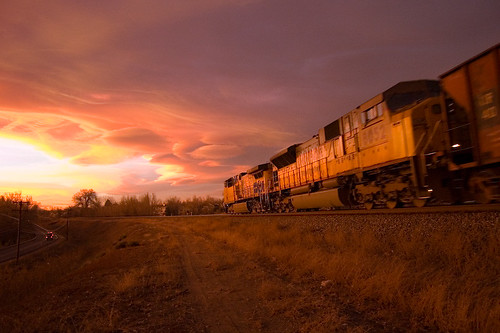
Some people like shooting jpeg, some like RAW. I like RAW because of the added versatility afterwards while the current tools do not actually make it a giant waste of time. Aperture, even though it has terrible RAW development, for example make sit really quick to work with RAW. Likewise the new Adobe Lightroom (looking forward to running the release version) does a similar thing. Here is an example of a RAW file that I originally developed a while ago:

Rushing into the sunset

Here is the original development:
Rushing off

The difference is just white balance! and the new development with the bright yellows on the clouds is much closer to what I saw.

Monday, January 22, 2007

Lightroom vs Mac OS X system RAW

I'll offer this without any comment, as I think it is quite obvious.

Mac OS X system default conversion (i.e. Aperture 1.1 RAW engine and other programs):
GGCSP_system_crop


Lightroom version: 100% crop
GGCSP_lightroom_crop

Here is the whole picture:
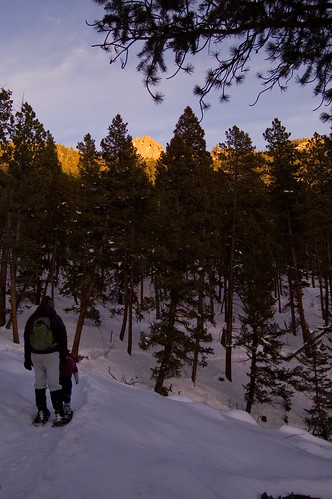
Snowshoeing Golden Gate Canyon State Park