Showing posts with label color profile. Show all posts

Sunday, August 10, 2014

Further quantification of the Mavericks color management problem

EDIT: Adobe fixed this bug for most types of display profiles in LR 5.7

I spent some time further quantifying the display problem that Mavericks introduced and that affects Lightroom, Aperture, and every other application that uses Apple color management libraries. (EDIT 10/19/14 - Apple fixed this bug in Aperture, right now it only affects Lightroom and Safari - all other color managed apps are fine - in Yosemite the problem persists). In short, the problem is that shadows get crushed upon display. This is a serious bug that is remaining unfixed since OS X 10.9 and is apparently present even in the Yosemite beta. I am trying to raise awareness of this bug since I am getting no reply from Apple not from a bug report and not from directly emailing folks there. This should get fixed as it makes it tough to do serious work on Mavericks. You can work around it by using Photoshop which uses its own color management library or by using the soft proof feature in Lightroom. Mac OS X 10.8 and below do not have this problem and correctly show the shadows. This is independent of what color calibration you use and even shows up when you use Apple's supplied profile for your display.

I generated a simple photoshop file that has swatches of grey ranging from 1 to 100 in 8-bit scale and then used the system color taste dropper that you can get to if you open textedit and click the text color box. Then use "Show colors" and you can then "taste" any color on your screen and get the display values. These values are what is actually sent to the monitor and so are very useful for this purpose. Below I plot the values seen in Photoshop (correct), those in Lightroom Library and Lightroom Develop. I am not showing Aperture as those are the same as Lightroom Develop and also very wrong. I am using a double log scale to really show you the problem areas in the darker regions below r,g,b=25.

I did this using the nice plotly plotting service. The images sometimes take a short time to show up. You can find the data in the link on the bottom of the plot. Photoshop's light bump in the shadows is correct as sRGB has a little knee in the shadows. Lightroom Develop due to the Mavericks bug displays way lower intensity than it should leading to the crushed shadows that people are observing.

I also created the same swatch file in the color space of my monitor profile. The display of those swatches should happen at exactly the same display value as the input file. This really illustrates the problem I think.

Photoshop clearly does this correctly. The relation is almost exactly linear and any deviations are a single bit difference which is just a rounding error. Lightroom Develop shows way below. Lightroom Library is close but with a larger error than Photoshop. Below is the same data bit plotted as display error.

Mavericks causes Lightroom Library to be off by a full 8 points in the shadows! I hope this data is useful to somebody and helps some folks that have puzzled over dark shadows in Mavericks applications.

Saturday, January 18, 2014

Serious color management bug in Mac OS 10.9 "Mavericks"

Update Feb 26, 2014 - Just updated a machine to 10.9.2, the update that fixes the nasty SSL bug. It does NOT fix this color management bug.

After quite a bit of testing I have come to the conclusion that there is a serious color management bug in Mac OS X 10.9 Mavericks. This is subtle but will result in your shadows being displayed much darker than they really are. The bug affects almost every color managed program and is present whether you use a display profiler such as a Spyder or whether you use the built in profiles. The bug was introduced with 10.9 and is not present in 10.8. So if you are a pro using Mac OS X, stay on 10.8 for now. Strangely enough, Photoshop displays correctly, but it is the only program that does consistently. Aperture plugs the shadows. Lightroom displays correctly in the Library module but incorrectly in the Develop module which makes developing your pictures when looking for shadow detail difficult. I already submitted a bug report to Apple so we'll see if it gets fixed. I am not the first to notice this as is clear from this thread on Adobe's Lightroom forum.

This is the display in Photoshop(correct) on 10.9.1

This is Aperture on Mac OS X 10.9.1:

The first row has disappeared and the second row is much darker than it should be

This is Lightroom Library module (close to correct)

And this is Lightroom Develop (way off again):

Hope this is useful to somebody. The test file came from lagom, which I turned into a RGB tiff file with an included sRGB profile so that Aperture could read it. Again, on 10.8 the display is identical in all software. Also, it doesn't matter whether you calibrate or not or what calibrator you use, they all show the issue. I used a Spyder 3 Pro here but the issue shows up with other calibrators too.

EDIT: This bug is fixed in Aperture. It is still present in Lightroom and Safari

Monday, January 16, 2012

Chrome suddenly color managed

This one snuck by me. I have complained many times in the past about deficiencies in browser color management. Chrome and Firefox are seen wavering back and forth all the time. I recently lamented the fact that Chrome was not color managed. However, I happened to open it recently and noticed that the color was not off as I was used to on my wide gamut screen (Chrome version 16.0.912.75). In fact it looked 'normal'! So I quickly whipped up a comparison between browser and the gold standard in color management: Photoshop. The screenshot was converted from my monitor profile to sRGB for web display.


As you can see, contrary to my previous post using Chrome 13, it is now color managed! This is great news as we now have three browsers that are color managed, at least on Mac OS X. I understand that on Windows, the latest Chrome is not yet color managed, which if true, is a shame. Nevertheless, this is a great development and a return to what I called "web browser bliss" years ago, but what was dampened from that initial optimism since then because of regressions at Mozilla and Google. Here is to hoping that the last holdout IE, which still does not convert to the display profile as it should, will at some time join 21st century even if 2012 is a little late for finally doing what was proposed by Microsoft themselves in 1996.

Finally, by checking the icc v4 testing page in all browsers, I can now report the following for the browser versions current at the date of posting:
Browser icc v2 compliant? icc v4 compliant? converts to display profile? assumes sRGB for untagged images?
Safari yes yes yes no
Chrome yes yes yes no
Firefox yes no yes (some v4 profiles work!) no (yes with secret setting enabled)

In conclusion, if you are on a Mac and care about color rendering, I can now heartily recommend Chrome next to Firefox and Safari.

Thursday, August 4, 2011

Why I do not use Chrome - even though it is fantastic

Is captured in the below screenshot


Click for full resolution.
Left Firefox 5, middle Safari 5.1, right Chrome 13.0.782.107. As you can see, Chrome renders the desert sunset image drastically different. The subtle orange hue turns into red.
This is as seen on my wide gamut display that was calibrated user a Spyder 3. I converted the screenshot from my display profile to sRGB for web display so this cut down a large portion of the difference as the red orange is out of sRGB gamut. In reality it is more drastic than can be shown on the web. The sidebar image of the patch of marsh flowers in Mayflower Gulch for example renders in a very garish green and comically red mountain range. The shadow portions under the flowers are too dark and some detail disapears.

The reason for these differences is that Google in their infinite wisdom when they released chrome cut out color management which had been enabled and present in the developer releases for mac. And despite widespread outcries, it hasn't been fixed and the flag that you can use on windows to enable color management does not work on Macs and apparently not even on windows anymore. If you are a photographer or designer who calibrates their screens, this really impacts you and all your images will display wrong in Chrome on your system. Only Safari and Firefox (if you make sure to calibrate to a v2 icc profile) will work correct. Firefox has an advantage over Safari in that it will even color manage untagged images if you set it up to do so in the secret settings. The failing of Chrome in rendering images correctly is especially strong if you work on a wide gamut display or on a laptop display. On good normal (sRGB gamut) screens it is even a problem for shadow rendering where unmanaged browsers will show you plugged up shadows. This is due to the fact that the display is calibrated for gamma 2.2, while sRGB has a linear tone curve in the shadows. This might not be that big of a deal as the hyper saturation that you get on wide-gamut displays though.

I understand that Chrome cut out its color management to make sure Chrome renders like Internet Explorer and to be slightly faster than with color management, but why would you want to target the lowest common denominator? It's a pity because it is otherwise a fast and capable browser and I actually prefer it for most other uses especially Google+. I would be happy with a simple flag I can enable somewhere as I realize that not everybody needs this.

Please Google, give me a flag!

Links: Why color management is so important in browsers. All about color profiles and color managed apps here.

Friday, July 10, 2009

Firefox 3.5 color management

Am I nuts or did Firefox 3.5 release break their color management? It no longer passes the icc test whereas Firefox 3.0 with the secret setting would perfectly. It also no longer grabs my monitor profile where 3.0 would correctly! What is going on here? If this is true than Firefox messed up in a major fashion!


EDIT: It's true. Firefox 3.5 dropped support for v4 profiles. This is a major step backwards. Most display calibration solutions nowadays generate v4 profiles and therefore color management will not work in FF 3.5. FF 3.05 works just fine. Very disappointing.

Friday, March 13, 2009

A new day! Firefox color manages by default

Firefix is now enabling icc support by default in their new beta! See this page. This is great news


The default settings only enable color correction for tagged images, just like Safari does. You can enable full color management in a similar way as before. There is now a "gfx.color_management.mode" variable in the about:config box that you set to 1 in order to also manage untagged images and CSS colors as if they are sRGB. This is very helpful for folks with wide gamut displays. IE as always is far behind in this field.

To be complete: Here is a link showing how to enable color management in the current Firefox release. Doing this indeed color manages even untagged images. A very important feature.

Sunday, February 22, 2009

The Boston Globe's awesome photo galleries - all in adobeRGB?

I always thoroughly enjoy the beautiful galleries that the Boston Globe publishes. This time is no exception. I am always struck by the beautifully saturated colors they appear to be able to hit. Of course I always use color managed browsers. Webkit/Safari is my favorite, although I also use Firefox 3 with the secret setting enabled. So I had never noticed this before but all the images on the galleries in the globe are in adobeRGB color space. Of course my browser is color managed so this doesn't matter and it even leads to even better colors on my wide gamut display, however, if you use a non-managed browser like internet Explorer (trash it!) or Chrome, you might want to fire up Safari or Firefox (don't forget to enable the color management) and check out their galleries. The difference is stunning, especially in the gorgeous reds and yellows they have such as the fires near Melbourne of a while ago. They are so much more amazing in a managed browser. This is especially true if you use a laptop with a small gamut display such as a Apple MacBook.

Roll over to see how much better this image looks in a color-managed browser, even on a fully calibrated screen! These are screenshots from the aforementioned bushfire galleries from Firefox using managed and unmanaged settings. The awesome (in the original sense of the word of inspiring apprehension or fear) destructive power of the flames really comes out in an unsettling manner in the managed rendering. Be patient, depending on your connection, the first time this can take a few seconds to appear. After that, it will be instantaneous.


Even though this is simply an error by the web people at that newspaper (they should use sRGB for everything), this is another big argument for using a managed browser at all times.

Thursday, July 31, 2008

The new grad ND tool

Lightroom 2.0 now has a new tool that allows for the very easy creation of simulated graduated neutral density filters. I used to do this all the time in Photoshop, but now we can do this far faster and far more convenient in Lightroom. Below I discuss an example of its use mixed with the new camera profiles. To prime you all, here is an the before/after view (larger in the link):


As you can see the left image is the default ACR 4.4 rendering (I only rotated it 1.5 degrees or so to level the horizon and upped the blacks). This image was taken right after sunset in Canyonlands National Park using my super backpacking friendly D50. On the right the same image, but with the camera landscape profile applied and two grad NDs. I also changed the white balance to cloudy. As you can see. Left - quite boring. Right - very nice saturated colors. The grad NDs can be applied by clicking on the little icon that looks like an actual grad ND filter. Without the grad ND filters, the image looks like this now:


First I applied a quick transition +0.8 exposure grad ND as in the image below.


Then I applied a broader -1.0 grad ND to darken the sky:


This trick allows one to create quite complex gradations. I added a tiny tweak of the curve and added a little clarity and vibrance and saturation.

Here is the final result (large in the link):

Canyonlands dusk

Tuesday, June 17, 2008

Firefox 3.0 released

Today, to great fanfare (and an embarrassing server crash) Firefox 3.0 got released. This is a great and fast browser even if on the Mac I prefer Safari. One of the promises it held was that finally, there would be a mainstream browser outside Safari that supports color management. Unfortunately, it is not enabled by default which is a very bad decision. There is no good reason for this and the quoted reasons (incorrect color in pages that mix CSS elements and images) is just plain wrong technically. Color managed apps will only color manage images that have a profile. Image elements on webpages never have those, so the appearance will not change. Luckily, there is an option to enable color management in Firefox that is hidden in the secret configuration pages. You enable it by typing "about:config" in the address bar (without quotes). Click "I'll be careful" and you'll get a page with many obscure settings. In the Filter box, type "management" and the only two relevant options will come up. Make sure that display_profile is set to the default, and double click on the"enabled" property to change its value into "true." This will turn on color management and will make those images on the web that have profiles embedded appear as they were meant (as long as you have calibrated your monitor). Even images in sRGB will benefit from this. This really should be the default and I think it is a major error that they did not enable this at least as a visible preference. Next time better I hope.


To learn why this is really important, see this excellent explanation. Test your color managed browser here.

Edit: it turns out that Firefox 3.0 color manages every image, even untagged ones. That is a superb choice!

Saturday, May 17, 2008

Great prints from labs

Earlier I wrote about a workflow to get beautiful prints from labs such as costcos using Lightroom and external apps. In the new Lightroom 2.0 beta, Adobe has heard our prayers and the print module (unfortunately still not the normal export) now allows output to jpeg in arbitrary color profiles. This works beautifully.

Here is an example setup: (click for full size)


I set up a custom paper size in the page setup panel for 5x7 images without any margins, and setup the image in the print panel. Then I select print to jpeg, set the resolution to 300 (the resolution most Frontiers and Noritsus print at), set print sharpening to the paper kind and desired sharpening (I've found from testing that low or medium works really well even though these settings are not really meant for photographic lab printers). Then in the color management tab I select the profile from my lab (my local costcos in this case) and what kind of rendering I prefer. Then hit print to file and I get a jpeg file with the right profile and size/resolution/sharpening that I can upload and print (don't forget to turn off color correction for printing your images otherwise all your hard work is for naught). Very handy. Unfortunately, multipage jpeg output is still broken in that it gives you a set of files without extensions. They are normal jpeg files though. Also, there should be an option to not include the profile in the output file. Often these profiles are gigantic (my costco one for example is 1.5 MB) and they add substantial time to the upload to the lab. I usually strip them using a photoshop droplet, but this could be much handier. Also, there still is no softproof here anywhere.

Anyway, here is the result of such an exercise with the slide image after conversion to sRGB for web display and scaling/sharpening for display.


Enjoy your prints. Note that you should not bother with any of this if you do not calibrate your screen using calibration hardware. Screen calibration is the first requisite for getting good color prints. Secondary to that is using lab printer profiles. With an uncalibrated screen - no matter how expensive - you will never see the correct color anyway.

Sunday, December 16, 2007

A (mildly) Lightroom workflow for printing at costcos and getting superb color

Update: see edit at the end:

Update II (5/20/08): Lightroom 2.0 has made this workflow unnecessary. Check out my post on it.

I decided to detail my printing workflow I follow in Lightroom and Photoshop. This workflow will yield photographs up to 12"x18" (the largest most places print in 1-hour service - not a real limitation) with color and dynamic range rivaling and in some cases exceeding very expensive inkjets, but at a fraction of the cost. I use costcos for this purpose as they are fast, good, provide icc profiles and close to where I live, but I am sure other comparable labs will do fine too with a similar workflow. Labs that use Noritsus or Fuji Frontiers will all have very similar quality. My local costcos uses Fuji Crystal Archive paper, which is somewhat thin for larger prints, but gives excellent color fidelity and deep dynamic range. The machines raster scan a laser at three colors over this paper to expose the paper which is then developed using conventional chemical processes. You're actually getting a real photograph from a digital file. The workflow I'll discuss is done in photoshop, but you could use any program that can convert images between icc profiles. For example preview.app from Apple. This sort of sequence is necessary because Lightroom will not export directly to arbitrary icc profiles. Hopefully that will be built in in a future version?1

Preparation:
1. The first step is to download and install the icc profiles for your lab. Costcos makes them available on their photo upload pages, but they are actually done by dry creek. You can see if you can find your lab there. Download them and install them in a place where photoshop and other color managed apps can find them. On Macs that is simply ~/Library/ColorSync/Profiles or/Library/ColorSync/Profiles. On windows it is somewhere deep in the crypts of the OS. Check this page for instructions. Once installed, you should once every few months check if there is an updated profile.
2. Set up photoshop correctly. Many photoshop installations are setup incorrectly due to bad information floating around on the web. The way You should set it up is to respect embedded profiles and warn for profile mismatches. You get to the dialog in Edit:Color Settings. See below for a suggested setting:


Here I've disclosed the extra options, but they are usually correct. I'm just showing them for reference. The setting for the RGB working space is not that important. Setting it to ppRGB just makes photoshop throw up fewer warnings. When you get a color space mismatch warning when loading a file, always choose "preserve embedded profile." NEVER EVER choose "discard"


So only the top two options are meaningful. Now you have setup Photoshop correctly and it is time to describe the actual workflow:

Workflow:
1. Select the photos you want to print and crop them to the desired aspect ratios of your final prints. Typical print sizes are 4x6, 5x7, 8x10, 8x12, 12x18, etc, so your usual ratios are 2x3, 5x7 and 4x5.

2. Export your photos from Lightroom using the prophotoRGB profile (why ppRGB? check here) in a 16-bits Tiff or psd. At this point I use two different workflows depending on mood. I either scale in the output dialog of Lightroom, or in Photoshop. You should scale to your desired size at a resolution of 300 ppi approximately as this is the approximate resolution of the photomachines.


It s a good idea to create a preset for this.

3. Open one of the exported files in Photoshop.

4. If you did not yet scale to the final size, do it now using the Image->Image size dialog. Again, use 300 ppi for the resolution and type the size in inches or cm of your final print, making sure you have "resample images" checked. This will calculate the actual needed image dimensions in pixels for you and scale to that size. At this stage I use bicubic sampling for the resizing, but you could use whatever algorithm you prefer or perhaps a plugin such as Genuine Fractals.

5. Sharpen for final output. The machines have a resolution of 300 ppi approximately, but they are soft at that resolution which you should try to counteract to get the best prints. You can use many third party sharpeners for this purpose, but to keep this tutorial simple, I'll show you how to use the unsharp mask in Photoshop. Before I open this dialog, I usually zoom the image to 50%. The filter can be found in Filter->Sharpen. Zooming to 50% is a very old trick that allows you to judge the effect of the sharpening fairly well on screen. The settings below are fairly typical for me. An amount of about 150%, a radius between 0.5 and 1 and a threshold of 5 (to avoid sharpening noise).


This should look only slightly crunchy in the 50% preview in the big window. Experiment with this to see what works best.

6. Now comes the important step.2 In the Edit menu, choose "convert to profile." In the dialog, choose the profile for your printing service:


7. Convert to 8-bit color (Image->Mode->8 Bits/Channel.

8. Save as a reasonably high quality jpeg:


Make sure you do not select the embed color profile option. The machines ignore the profile anyway and the profiles are usually around 1.5 MB, so to save you upload time, do not embed it. Give it a name that describes which profile you used and to which size you scaled it so that you can identify it later.

9. Repeat steps 3 to 8 for all your photos

10. Upload to your lab and print!

You can easily create a Photoshop droplet for all this if you basically always go to the same size. Also check out my older articles detailing how to use the print panel in Lightroom to do basically the same thing, but including logos and such. Here is the original article and here I explain how to add borders and such.

Notes:
1 At this point I should note that you could do this all with just sRGB files. However, in my experience, the color reproduction is not as good as I like. Using custom profiles gets me exact color reproduction.
2 At this point you could first softproof to correct for any out-of-gamut colors. I'll leave that for a later article.

UPDATE: Timothy Armes brought out a plugin for Lightroom that does all this without the need for Photoshop.

Friday, November 2, 2007

Relevant example for ppRGB vs adobeRGB

I realized after the last post that I need to give a real world example. The example that I am going to give is from the recent shot below:

.

I took this into Photoshop in 16-bit ppRGB and softproofed it to the profile of my local costco's Noritsu and to adobeRGB. In both cases, I show the gamut warning (in grey).

Here is the soft proof for adobeRGB (click for large version):


As you can see a lot is out of gamut in the mountain area that is lit by the rising sun. Especially the green of the trees is far out.

Now take a look at the same for the local costcos:


Far less is out of gamut. Especially the green/yellow of the lit trees is not at all out of gamut, while it was in adobeRGB. This clearly shows that in real world images, you lose colors that even not so wide gamut machines can print if you use adobeRGB as a working space. Of course, there are not really any displays that can actually display these colors...

Why use prophotoRGB instead of adobeRGB as a working color space?

Lightroom uses a variant of prophotoRGB as its internal colorspace and when you export to photoshop, it defaults to prophotoRGB. One could argue that this is overkill and adobeRGB should be wide enough. However, typical DSLRs can easily capture color outside of adobeRGB. "What does that matter if you cannot print those colors?", you might ask. The answer is that as soon as your printer has more inks than just CMYK, you can reproduce colors outside of adobeRGB! This can be easily shown when comparing profiles in Apple's excellent and free colorsync utility app. Even worse, you do not need a good printer to reproduce these colors, if you send your images to Costco's, Adorama, smugmug, and such for printing, you could be using their profiles for conversion and you would be able to reproduce color outside of adobeRGB. Don't believe me, here is the proof:


The wireframe in this graph is adobeRGB, the solid, colored volume is the glossy profile from my local costcos. As you can see the costco profile indicates that their Noritsu in this case can generate color outside of adobeRGB! Now compare this with the same figure for prophotoRGB:


As you see the entire range of colors that costcos printers can reproduce is enclosed.
Of course if you are working in less than 16 bits (everything in LR is 16 bit, so that is not anything to worry about), ppRGB might not be a good choice as you blow up the difference between 2 color values too much and you might get posterization. Fortunately, basically everything in Photoshop is 16 bits nowadays. So for prints from costco, a good workflow is to export to 16-bit ppRGB tiffs/psds, convert to the right profile in photoshop and then convert to 8-bit and save as a jpeg.

Friday, June 15, 2007

Finally

An amazing thing just happened. Apple just came out with a version of Safari for windows. What this means for photographers is that there is finally a browser on windows that color corrects images (even if it is quite buggy)! I tested it and it works! Respecting embedding profiles is extraordinary important as is evident from this excellent 7-page writeup. It's been extremely embarrassing and annoying that even in Vista, IE does not respect embedded profiles, but even worse that Firefox does not color correct on any platform. Let's hope that Safari's excellent example will lead the way.

Thursday, April 26, 2007

Printing to jpg from lightroom

EDIT 2/13/2011: for some strange reason this is one of the most visited pages on my blog with something like 100 hits a day. People should not be using this hint anymore. It is very much outdated as Lightroom has a print-to-jpeg function in Lightroom since v2 that works much better than this hack that was necessary in v1.


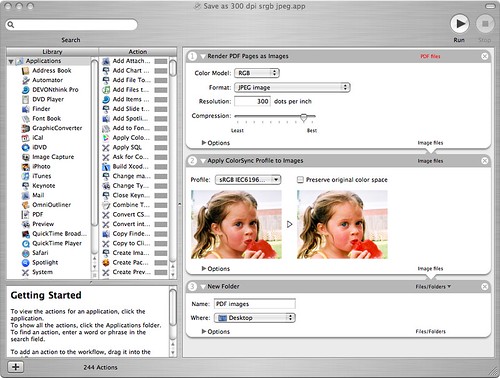
I was inspired by some posts on the Lightroom feature request forum to make a nice Automator workflow to automatically generate jpegs in srgb (or any other desired) space from Lightroom. Lightroom's printing panel is very nice but I do not own a >$1000 printer to actually take advantage of it. So, if you could print to something like a jpeg and then send it to a development service that would be great. There were a few examples already noted there but none actually did the essential step of converting to another profile as otherwise you end up with an image in Generic RGB, which will print way to dark from most printing services. So here is a workflow that does that. If you do not see the entire screenshot, make your window wider. There is a larger copy in this link.

workflow

To recreate this, first drag a render pdf as images action into the right part, select color model RGB, format jpg and a high resolution and high quality. Then drag the Apply colorsync profile to images below it, select an sRGB (or any profile you desire, such as maybe a profile supplied by the printing service) profile (there are typically several, it doesn't matter which one you choose). Lastly, drag the New folder action below and set it up as you want. The service will create this folder if it doesn't exist or simply throw the files in the folder if it already exists. Now save the workflow as a plugin for "Print Workflow."
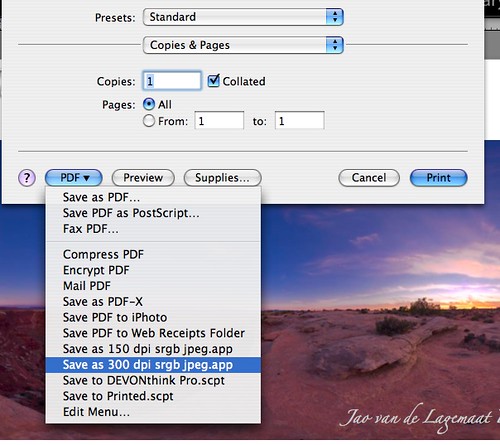
Now, whenever you print, you can simply select this workflow as in the screenshot below

pdf menu

And you'll end up with nice jpg files directly from the Lightroom print module in a usable color space! You can add borders, put multiple images on the page and add your logo!

UPDATE 9/7/07: Apparently, this action might fail if you have enabled FileVault on your machine. If you have that make sure that the folder you export to is outside of your home folder.

UPDATE II: More info here.

UPDATE III: A method to add logos and such to exported images

Sunday, April 8, 2007

Color profiles in ImageKind

Turns out that I am wrong. They do support arbitrary color spaces! Now up to see whether they will automatically convert to sRGB for web display. My guess is yes.
Update, big surprise! It does not convert the preview images to sRGB. This means desaturated colors in the preview image if you are not using a color-managed browser as 95% of the web-using public is! A little unfortunate.